
Quick start
Redaktis swaps personal and company details for placeholders before your message reaches an AI chat site, and shows the real values back in the reply. The checking happens on your computer.
1. Install
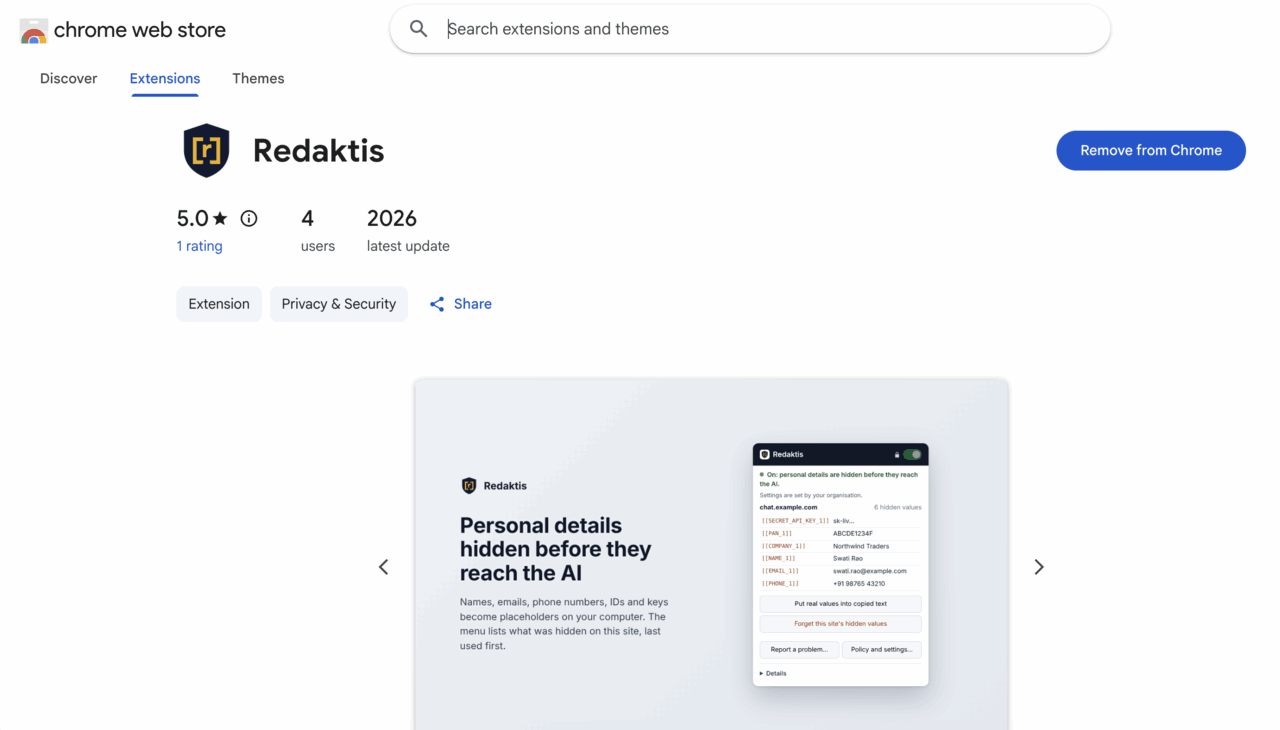
- Open Redaktis on the Chrome Web Store.
- Press Add to Chrome. You need Chrome 137 or later.
- Click the Redaktis icon in the toolbar to open it.
Using Microsoft Edge
A Microsoft Edge Add-ons listing is coming. Meanwhile, install from the Chrome Web Store page above; Edge asks you to allow extensions from other stores.
At work, with IT
Your IT team installs it for you and may set it up through browser policy. You then use your organisation's licence and do not activate it yourself. Go to section 3.
2. Activate
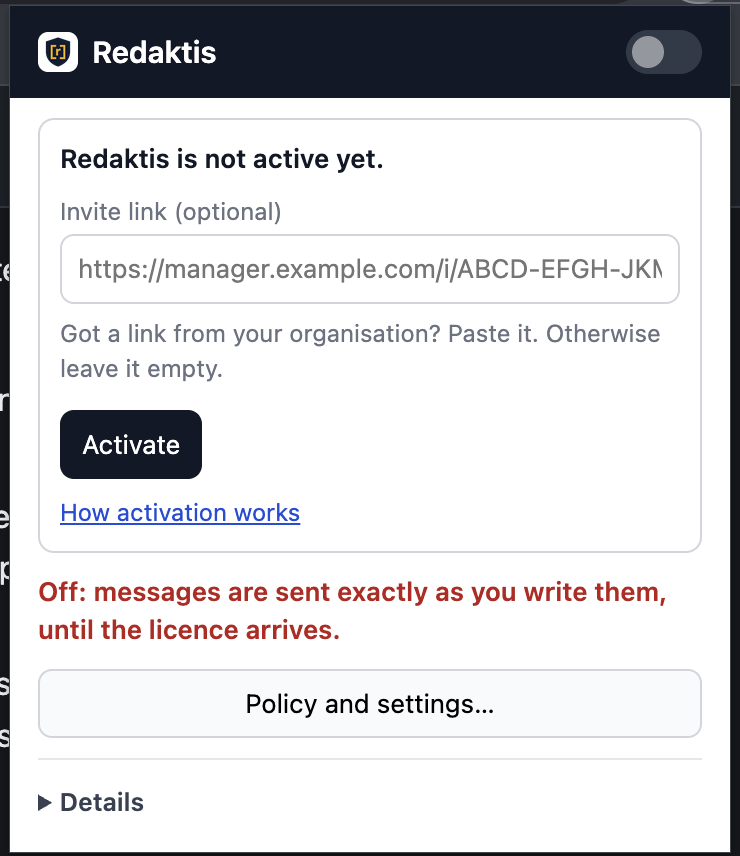
Redaktis does nothing until it has a licence.
- Click the Redaktis icon. The Activate panel has one box.
- If your organisation sent you an invite link, paste it into the box.
- Press Activate.
- With a link, confirm the organisation's name. Without one, you go to manager.redaktis.com to sign in or create an account (a 6-digit code is emailed to you, or use Google or Microsoft) and choose Free or the 14-day trial.
What Free, the trial and an invite link give you
| Choice | What you get |
|---|---|
| Free | Names, email addresses and phone numbers are hidden. One person, one browser, about a year. An account can have at most 3 computers a year. |
| 14-day trial | Everything in the Business plan. Once per person. |
| Join your organisation | Shown on the same page if you are signed in as a member of an organisation that has a hosted Manager and a free browser seat (needs Redaktis 0.22.0 or later). It uses one seat. An Owner joins at once; other members may wait for an Owner's approval. |
| Invite link | Pasted into the extension, not chosen on the page. The browser joins your organisation's Redaktis Manager and uses one of its seats. |
If you bought seats
Paid plans are bought on manager.redaktis.com, never inside the extension. See the plans.
- Buy. Sign in, create your organisation and buy seats on Plan and seats.
- Get the link. After payment, give the hosted Manager its seats, then press Make an invite link and copy it. It is shown once; you can make another at any time.
- Paste it in each browser that should use a seat (menu, Activate box, Activate). Send the same link to colleagues; it works for as many browsers as you set.
I bought seats but only see the Free plan
The browser was activated without the invite link. Open the menu, press Leave and activate again, and paste the link.
3. What you will see
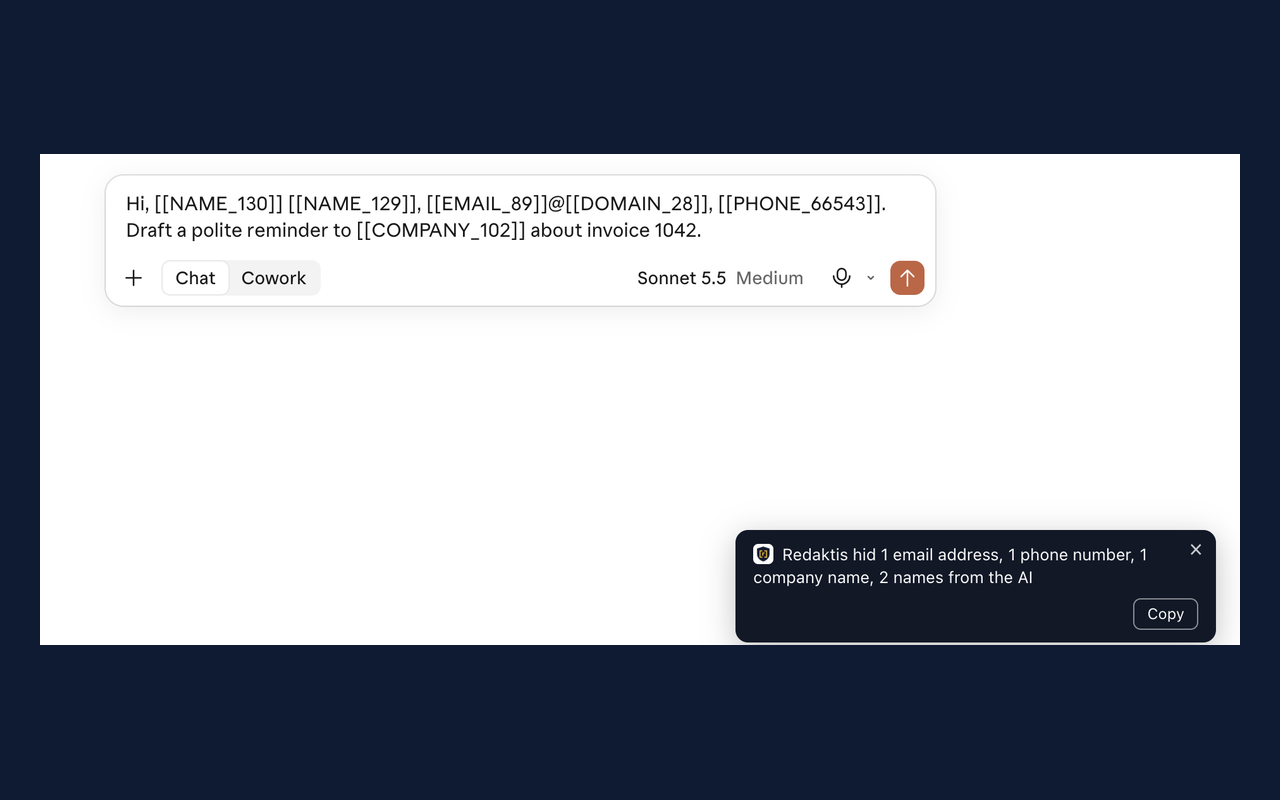
- Type or paste into a supported chat site. Details Redaktis recognises become placeholders such as
[[EMAIL_1]]. - Press Send. The site only ever sees the placeholders.
- Read the reply. Placeholders show as the real values, lightly highlighted.
- Copy. The site's Copy button and Put real values into copied text both give you the real values.
More detail
- If something cannot be hidden, the message is not sent and a red notice says why. Your organisation may also ask you to confirm first ("Check before sending").
- API keys and passwords are never put back on screen.
- Once per chat, a short note tells the AI what the placeholders mean. It shows collapsed as "Redaktis note to the AI".
- On an organisation's browser, settings show "Set by your organisation". If the policy changes while a chat is open, the tab asks you to reload and holds sends until you do.
4. Files and images
- Attach, drop or paste a file (PDF, Word, Excel, PowerPoint, text, code and more).
- Redaktis reads it on your computer and sends masked text.
- Images are read with on-device text recognition, in English.
- If an image or scan cannot be read, Redaktis asks before sending.
5. Where it works
ChatGPT, Claude, Gemini, Grok, DeepSeek, Perplexity, Microsoft Copilot, Mistral Le Chat, Meta AI and Poe.
6. The menu
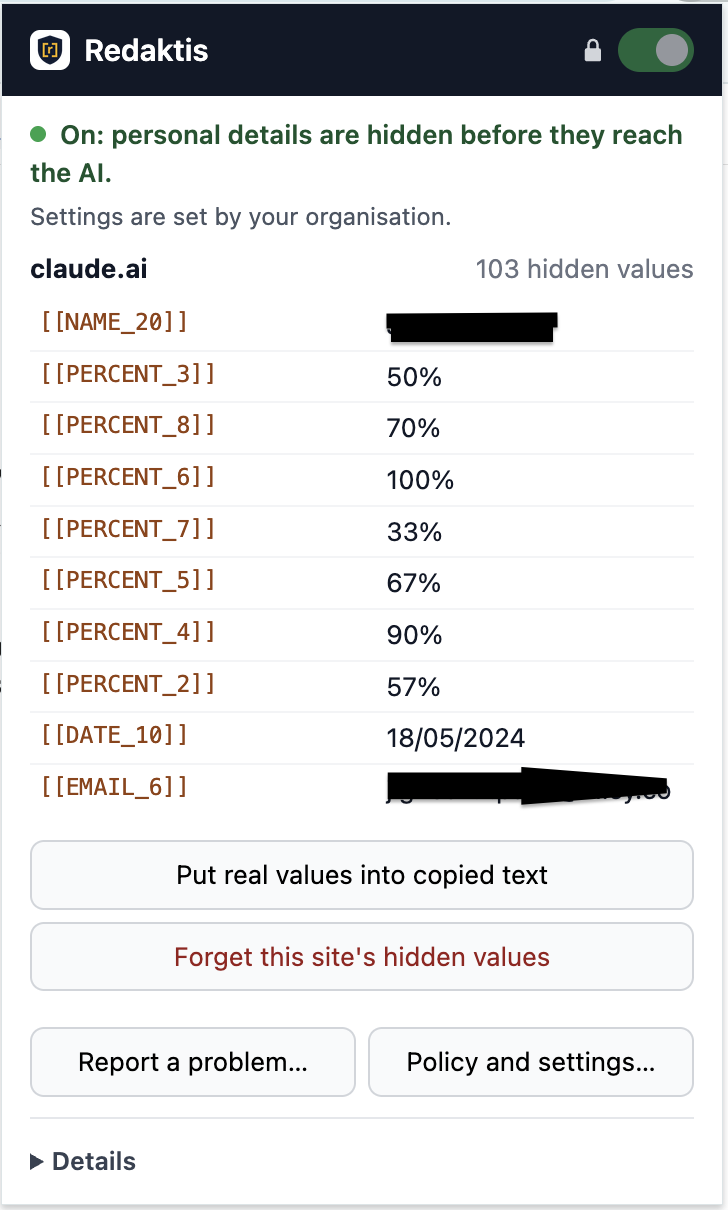
- Click the toolbar icon. The top says whether this site is protected.
- On a chat site, it lists the values hidden there, last used first.
- The switch turns Redaktis on or off everywhere. If your organisation keeps it on, the switch is dimmed with a lock.
- Details shows your organisation, the policy and where things are kept.
- Policy and settings… opens the settings.
In the settings
You can add your own words and people that are always hidden (one per line, or from a .txt or .csv file), and see counts of what Redaktis did in the last 30 days. Only counts are kept, never text or values.
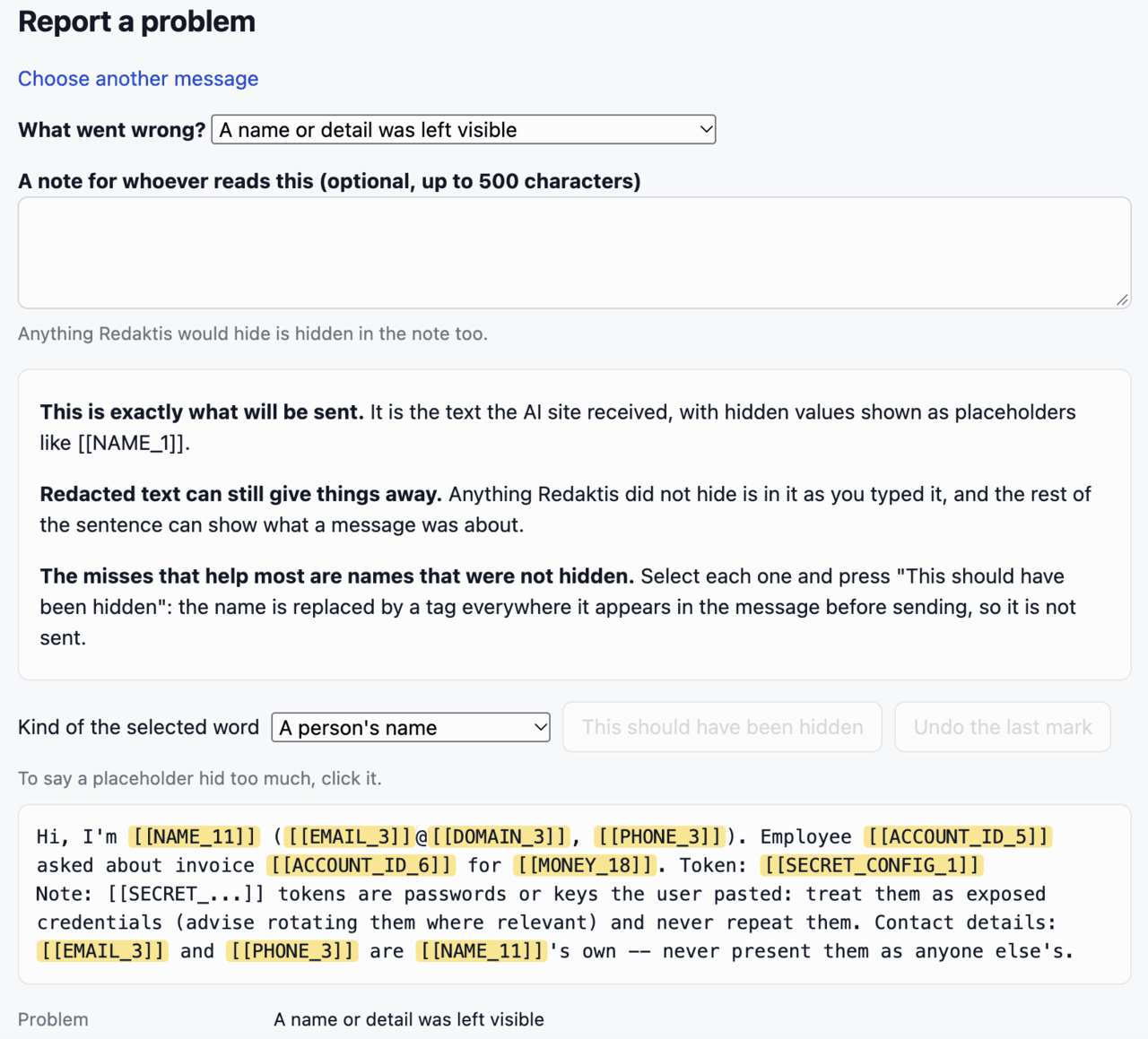
7. Report a problem
- Open the menu and press Report a problem… (always there on your own; there when your organisation allows it).
- Pick one of your last three messages. Redaktis keeps them 30 minutes, in memory only, as the AI site received them.
- Read the page: it shows exactly what a report would hold.
- Spot a name that was not hidden? Select it and press This should have been hidden.
- Tick the consent box and press Send.
Where it goes and how long it is kept
- Send goes only to your own organisation's Redaktis Manager, and only if your organisation has switched that on.
- The free plan never sends: it can save the redacted file or copy it, so you can email it yourself.
- Your organisation's Owners can read a report you send for 14 days by default; then it is deleted.
Saving the original text
If your organisation allows it, a separate box offers to save the original text to a file in your Downloads folder (Chrome asks permission once). It never goes anywhere by itself, and Redaktis removes it after 24 hours.